




Using NoCopyrightSounds on Spotify
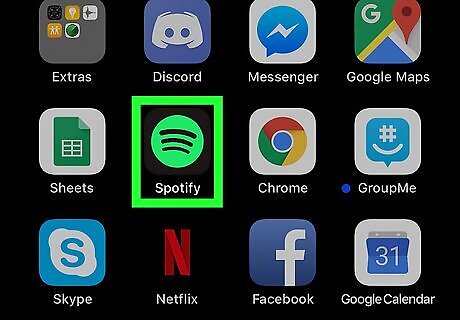
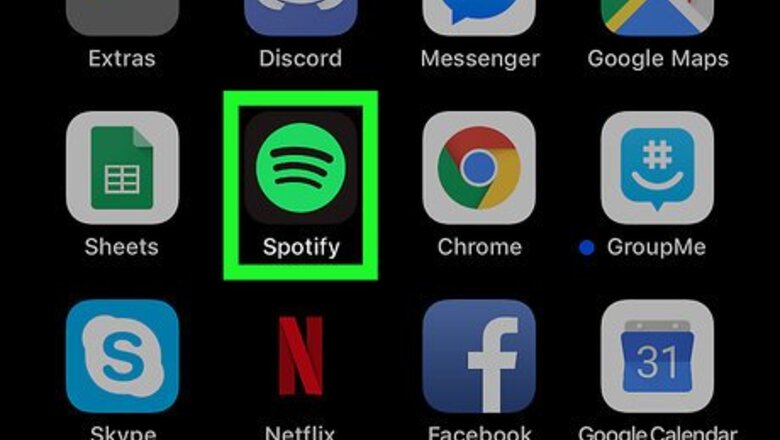
Open Spotify. This app icon looks like waves on a green circle. You can usually find this app on the home screen.
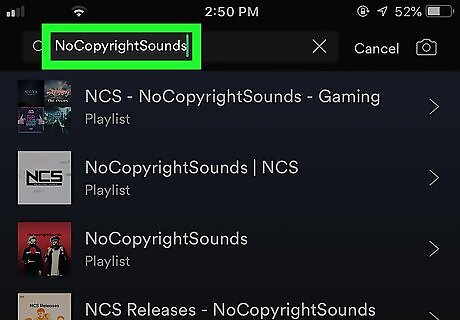
Search for NoCopyrightSounds in Spotify. The playlist is titled NoCopyrightSounds and the author of the playlist is NCS. If you don’t have the Spotify app, you can download it for free in the App Store. You can sign up for a free Spotify account or you can pay a monthly subscription to remove ads.
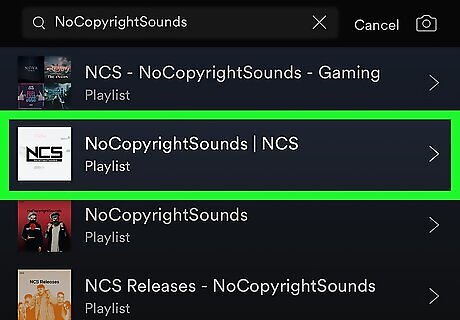
Tap a playlist to select it. The list of songs in the playlist will appear.
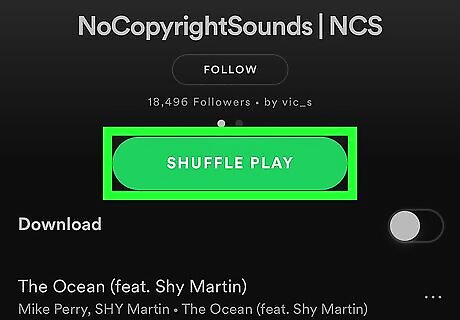
Tap Play or Shuffle Play.
Open Twitch. This app icon looks like a white speech bubble with quotation marks inside. You can usually find this app on the home screen. When Spotify is minimized, the music will still play.
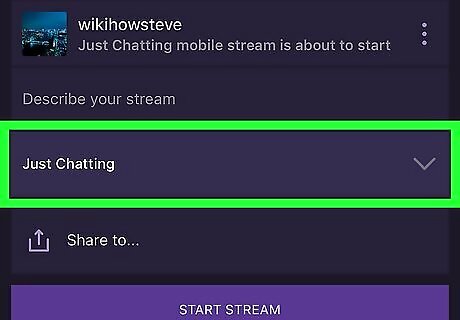
Start your live chat. You’ll have to choose a category like “Just Chatting” to begin. The microphone will pick up the songs playing from the speakers, so you’ll have background noise. If you have headphones plugged into your iPhone or iPad, you’ll hear the music, but the microphone won’t pick up those sounds.
Buying the Monstercat License
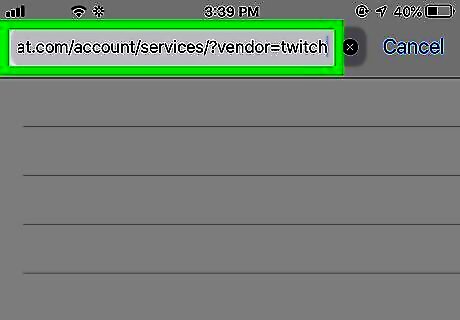
Purchase a whitelist license to use Monstercat at https://www.monstercat.com/account/services/?vendor=twitch. If you have a Twitch Gold account, this is free.
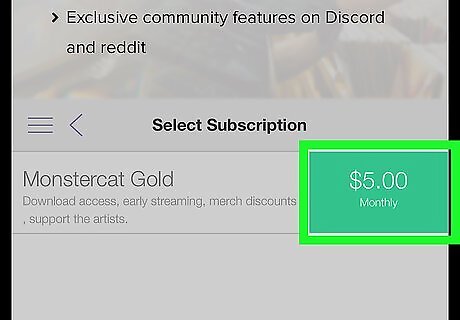
Click Continue in the Gold Subscription box. You’ll see this under the listed features of the Gold Subscription.
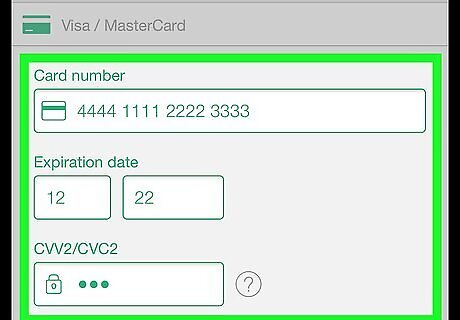
Enter your payment information. You may need to confirm the purchase.
Open Spotify. This app icon looks like waves on a green circle. You can usually find this app on the home screen.
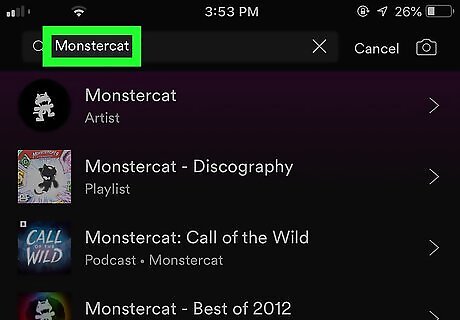
Search for the “Monstercat” artist. Any songs under this artist, as long as you’ve purchased a whitelist license or Gold Subscription, are acceptable to include in your Twitch broadcasts.
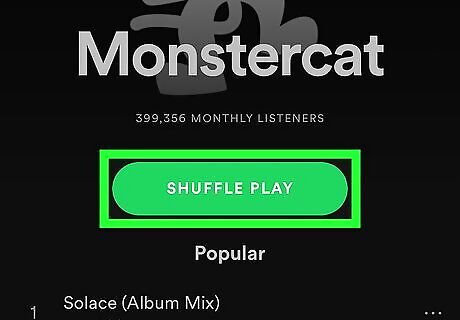
Tap Play or Shuffle Play.
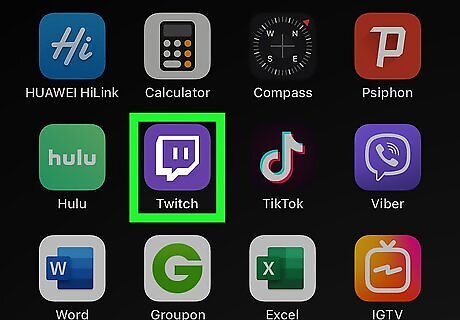
Open Twitch. This app icon looks like a white speech bubble with quotation marks inside. You can usually find this app on the home screen. When Spotify is minimized, the music will still play.
Start your live chat. You’ll have to choose a category like “Just Chatting” to begin. The microphone will pick up the songs playing from the speakers, so you’ll have background noise. If you have headphones plugged into your iPhone or iPad, you’ll hear the music, but the microphone won’t pick up those sounds.










Comments
0 comment